


SPECIAL Informat.ro / How to turn off RO-ALERT on your phone



Always see our news on Google
After the heavy rain alerts issued in Bucharest after 1 a.m., many people were suddenly awakened by the sound of RO-ALERT and wanted to know if the notifications could be turned off. On most phones, you can disable RO-ALERT or limit the types of alerts you receive directly from the device settings, without the need for external applications or intervention from the operator.
What is RO-ALERT and how does it work
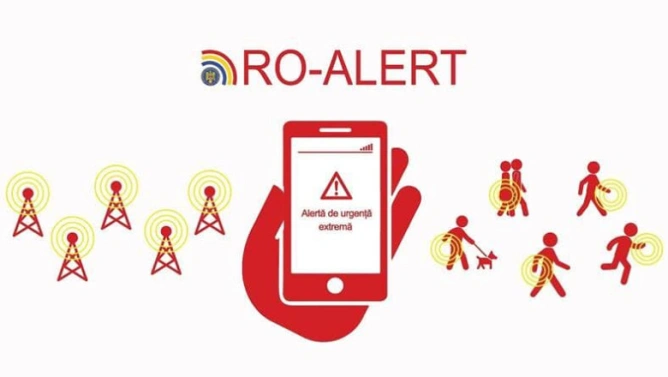
RO-ALERT is the national warning system for the population in emergency situations, which uses "cell broadcast" technology to send messages to all phones in a specific geographical area. Alerts can target extreme weather phenomena, floods, fires, major accidents, or other risks to public safety, and many phones sold in Romania are already factory-compatible with this system.
Messages appear on the screen as special notifications, accompanied by a loud sound designed specifically to attract attention, even when the phone is on silent. Most manufacturers have included options in the settings menu that allow you to control what kind of alerts you receive and how the phone behaves when they arrive.
Android: disabling or limiting RO-ALERT
The standard version (most Android phones)
Open the Settings app on your phone.
Go to Safety & Emergency or, on some models, to Apps & Notifications / Notifications.
Look for the Wireless Emergency Alerts section.
If you want to completely turn off the system, disable the Allow alerts option.
If you only want to reduce the type of messages, uncheck the categories you do not want:
Extreme threats,
Severe threats,
AMBER alerts (child abduction alerts, where available),
Test alerts.
Thus, you can keep only the most relevant alerts active, for example, the extreme ones, and give up on tests or notifications that you find too frequent.
Samsung Galaxy phones
Open Settings.
Access Notifications.
Scroll down and go to Advanced settings.
Search for and tap on Wireless Emergency Alerts.
To completely turn it off, disable the Allow alerts switch.
Alternatively, you can keep the system active and disable only certain types of alerts from the available list.
Phones where the settings are in the Messages app
On some models (including certain Samsung or other brands), RO-ALERT settings are hidden in the SMS app:
Open Messages.
Tap on the three dots in the upper right corner.
Go to Settings.
Look for Emergency alerts or Emergency alert history, then again Settings.
Uncheck the types of alerts you no longer want or completely turn off alerts, if this option exists.
iPhone / iOS: managing government alerts
On iPhone, RO-ALERT falls under the "Government Alerts" category and can be managed directly from the notifications menu.
Open Settings.
Go to Notifications.
Scroll to the end of the list, under the app.
There you will find the RO-ALERT or Government Alerts section, depending on the region and language set on the phone.
Disable the types of alerts you no longer want to receive:
Extreme Alerts,
Severe Alerts,
Orange/AMBER Alerts, if this option appears.
If you uncheck all these categories, you will practically no longer receive RO-ALERT sound notifications. To reactivate them, simply redo the steps above and check the desired alerts again.
If you just want to "soften" the sound
Not all users want to completely give up RO-ALERT; some just do not want to be awakened at night by the shrill tone. On certain Android phones, you can adjust in detail how these notifications are played:
You can turn off the vibration, so the alert is no longer accompanied by repeated vibrations.
You can disable the alert repetition, so the message is not repeated multiple times.
You can adjust the volume level for alerts or switch them to a less noisy channel, if the manufacturer allows this.
Important to remember: some settings are directly linked to special notification channels, which can override silent mode. Therefore, if you want to reduce the impact, it is worth checking both the "Cell Broadcast" settings and the alert preferences in the sound and vibration area.
Risks and recommendations
Before completely disabling RO-ALERT, consider that this system was created to save lives, providing critical information in real-time about immediate dangers. Completely turning off alerts means you will not be automatically notified in case of extreme weather phenomena, urgent evacuations, or other situations that may directly affect the area you are in.
A compromise approach is to keep only the truly important alerts (of the "extreme" type) active and to give up on tests or notifications that you find disturbing. In this way, you protect your sleep and comfort, but remain connected to essential information for your safety and that of those around you.
Documentary made with the support of Perplexity
Latest News
07:26
07:22
07:16
07:13
07:02
See more news
NEWS ON THE SAME TOPICS